The Portals: What Everyone Else Sees.
Your staff work in the console. Everyone outside your firm gets a portal of their own: your clients, and the managers and employees of the client businesses whose hours you handle. Each sees only what is theirs.
"Available" means built into the product today. "In development" means being built, or built and not yet installed on the development system. The product as a whole is in development: it runs on a development system with test data only, and no firm is using it yet.
For Your Clients
One place for a client to see what you need from them, send it, and see what you have ready for them.
Sending Things In
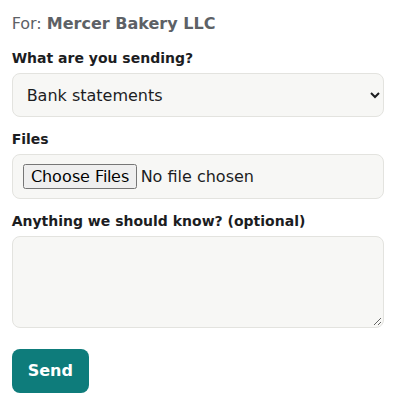
- To-Do: what we need from you. The list of what your firm is waiting on from this client. A client can upload straight against a to-do line. - (available)
- Send documents. Upload files, or photograph pages with a phone. Every file uploaded through the portal is virus-scanned before it is accepted. - (available)
- Replace a document. Send a corrected version of something already on file. - (available)
- Confirming a new sender. When an unfamiliar sender sends documents, your client is asked to confirm them, and confirmed senders are remembered. Your staff accept the change. It arrives in the next release. - (in development)
- What you have sent. A record of each item and its status, which updates when your firm files it. - (available)
Hearing Back
- Waiting for: what the firm is working on. So a client does not have to ask where things stand. - (available)
- Your documents and reports. Returns, statements, payroll reports and anything else your firm prepares appear here only after a person at your firm releases them. Your firm can also withdraw one. - (available)
- Send a message to the firm. The client picks a topic and it goes to that team. Because the client is signed in, you know who it is from. - (available)
- Answers from the firm, in the portal. Your staff reply to a client's message from the console. - (in development)
Their Account
- How to reach me. A client asks for the channels they prefer; your firm approves the change. - (available)
- Secure sign-in. A password with a code from an authenticator app, or a passkey. Repeated wrong attempts lock the account for a while. - (available)
- Phone notifications. On or off, as the client chooses. - (available)
For Managers
For the manager of a client business whose schedule and hours run through your firm.
The Team
- Team members. Keep each person's positions, contact details, emergency contact, credentials and agreed hours up to date. Your accounting firm adds and removes team members from payroll. - (available)
- Invite and reset. Invite a team member to the portal, or reset their access. - (available)
- See what they see. Preview a team member's own page, read-only. - (available)
The Schedule
- Build it. Add shifts one at a time or several at once, assign them, and copy a day or a week. Save templates for the patterns you repeat. - (available)
- Say what you need. Set how many people each part of the day needs, and fill the gaps. - (available)
- Let it propose a draft. An automatic draft schedule you can lock, adjust or discard. Nothing is published until you publish it. - (available)
- Plan breaks. See coverage across the day and stagger breaks. - (available)
- Busier or quieter than usual. A weekly local-demand brief marks days expected to run above or below normal, with the sales history and nearby events behind it. - (in development)
Requests and Today
- Decide requests. Swaps, offers and pick-ups, each decided by you or by the approval rules you set; time off, decided by you. - (available)
- Today. Keep logbook notes for the day. - (available)
- Reach the team. Send the day's call sheet by email to the team members on that day's published schedule. - (available)
Time and Payroll
- Fix the record. Add a missed punch or void a wrong one. Each change is recorded. - (available)
- Approve the timesheet. Approved hours go to your accounting firm as a payroll proposal for a person there to review. - (available)
- Shift reports. Send the end-of-shift register reports. - (available) Confirm the register reading. - (in development)
Setting Up
- Your business, your words. Sites and their time zones, opening hours, areas, positions, sections and parts of the day. - (available)
- Your rules. Approval rules and checks, the break rule, which positions close out a shift, and the pay methods you offer. - (available)
For Employees
For the people on the schedule. An employee sees only their own employer: their own schedule, plus the shifts open to pick up or swap.
Every change in a portal needs a full sign-in. Changes to schedules, hours, pay and settings are recorded.
- My schedule. On a phone or a computer. - (available)
- Clock in, out and on break. On the web or in the app, which keeps working if the connection drops. - (available)
- Offer, take or swap a shift. Offer a shift to colleagues, pick one up, propose a swap or answer one. - (available)
- Time off. Ask for it, or cancel a request. - (available)
- When I can work. Set availability and preferred times of day. - (available)
- How I am paid. Choose a pay method. The portal keeps only the last four digits once the details reach your accounting firm (within three days at most); a person there applies the change at the payroll company. - (available)
- Shift lead. Send the shift reports at the end of a shift. - (available)
- Secure sign-in and notifications. A passkey or a password with a code, and phone notifications on or off. - (available)
Reminders and Notices
How a Reminder Is Made - (available)
- Your firm sets a schedule for each client. Weekly, every other week, monthly, on chosen days, or a set number of days before a pay period ends.
- The server checks every hour for reminders that are due and drafts each one, addressed to the right contact at the client.
- The draft waits in the team's mailbox. It is placed in the drafts of the shared mailbox it belongs to, such as payroll@, so the team that handles that work sees it.
- A person on that team reviews it and sends it, from your firm's own email, as they would any message. Nothing is sent before that.
- The reply comes back to the same place. For payroll hours the reminder carries a table the client fills in, or a spreadsheet file for larger teams. The hours in the reply are read back and staged for your staff to check before anything is used.
Reminders for other things a client still owes can be drafted the same way by the follow-up worker. Your staff can also see every draft in the console and draft one on the spot.
A Notice Never Shows the Content - (available)
A notice to a client says that something is waiting in the portal. It never says what. The client signs in to read it.
Automated Reminders and Replies - (in development)
Your firm will be able to let routine reminders and replies go out on their own, marked as automatic. Each client can opt in or out. How that is designed to work
Where the Portals Live
The portals are hosted in an account your firm owns. If your firm prefers, RedactusHQ can host them as a provider. Your firm's own name, logo and colours appear on them.
We are looking for one accounting or bookkeeping firm to be the first sponsor. What a sponsor firm does